Candy AI turned character creation into a three minute job: it hands you a finished anime draft and you change only what you want. Here is the whole process with a screenshot at every step, using the character I built for this guide, Akane Wilder.
 By callieb
Open Candy AI's Anime tab, press Create Character, edit the tiles, regenerate the preview once and press Bring my AI to life. My character cost 11 tokens out of the 100 included each month.
Most builders ask you to fill a form from top to bottom. Candy AI does it the other way around: it starts with a complete anime character, picture and personality included, and you edit the parts you want to change. The draft follows the style of the catalog you are in, so starting from the Anime tab gives you an anime draft.
Every look change blurs the preview until you regenerate it, which costs 1 token. The final button, Bring my AI to life, costs 10 tokens and turns the draft into a character with her own chat. That is the whole economy of the builder.
You need a Candy AI account with Premium, because character creation and tokens come with it. Premium costs $3.99 a month on the 12 month plan, $8.99 a month on the 3 month plan or $13.99 for one month, and each plan adds 100 tokens a month.
Have a rough idea of who she is before you start: an archetype (tsundere, elf, office lady), an occupation and a personality. It saves tokens, because you will regenerate the preview fewer times.
Go to Candy AI and click Anime in the top bar, between Girls and Guys. This matters more than it looks: the character draft you are about to get takes the style of the tab you are in, so starting from Anime gives you an anime draft instead of a realistic one. Take a minute to look at the cards and the filters (Fantasy, Western, Blond, Brunette and others). They are a good source of ideas for outfits and occupations. When you are ready, press Create Character in the left menu. Candy AI opens a draft straight away, with a portrait, a name, an age and a set of tiles on the right. Do not worry about the draft's look or name; every part of it can be changed in the next steps.

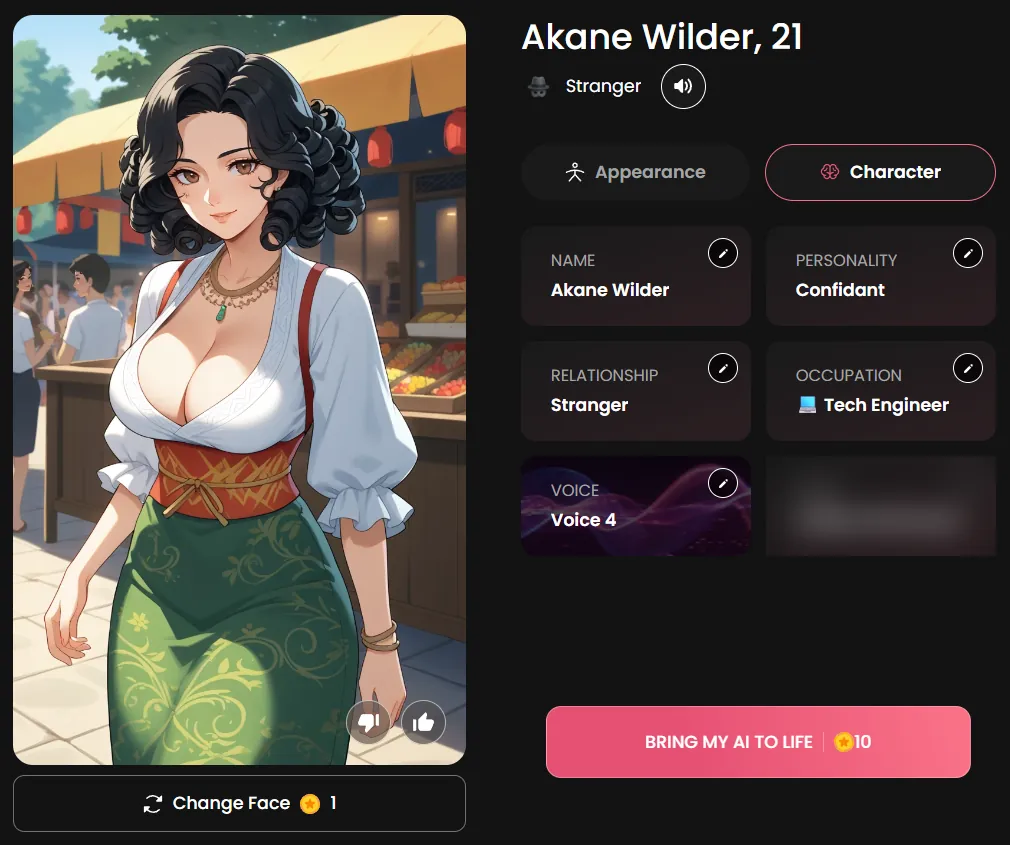
The draft screen has two halves. On the left is the portrait, with Change Face underneath (1 token for a new face with the same settings). On the right are the name, the relationship and two tabs, Appearance and Character. Appearance holds eight tiles: ethnicity, age, eye color, body type, breast size, hair style, hair color and outfit. Each tile shows its current value and a small pencil. The big pink button at the bottom, Bring my AI to life, shows its price: 10 tokens. Before you click anything, decide which tiles you actually want to change. Two or three changes are usually enough to make the character yours.
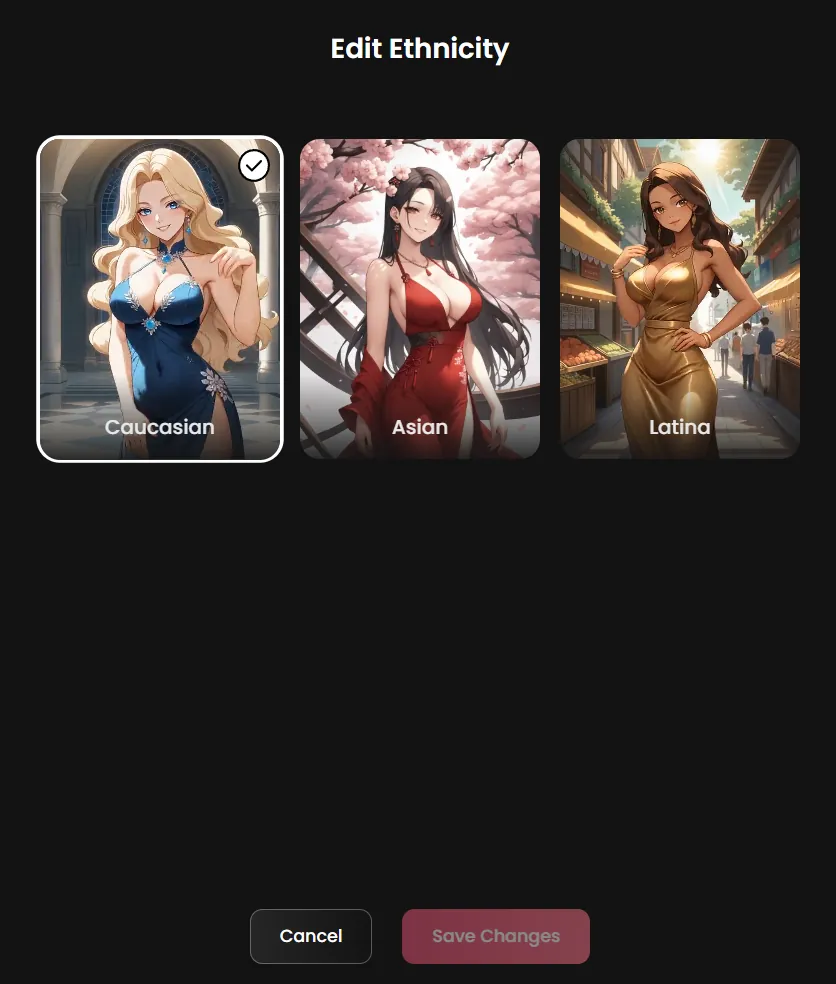
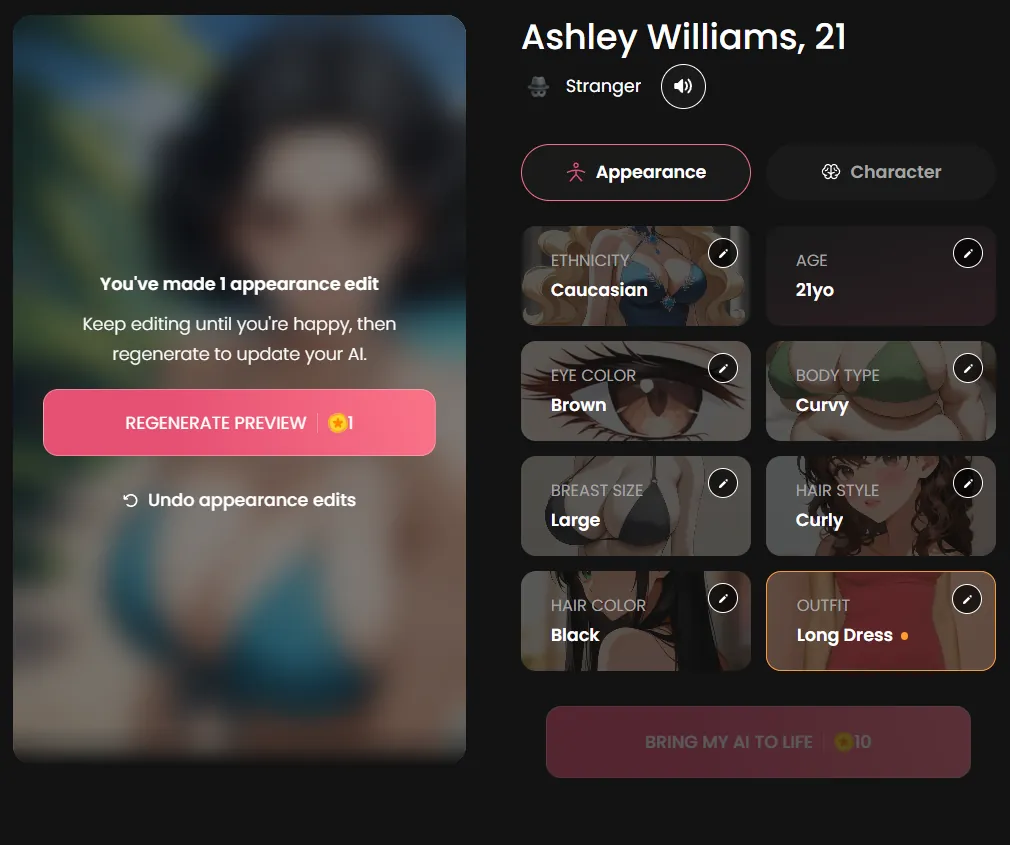
Click the pencil on Ethnicity to see three illustrated options: Caucasian, Asian and Latina. Pick one and press Save Changes. Then open Age: a slider runs from 18 to 39 and over. Move it to 21 or higher; I keep every character at 21 or more and I recommend you do too. Eye color offers Brown, Blue, Green, Red and Yellow, drawn as large anime eyes so you can see the result. Red and Yellow are useful for fantasy characters such as vampires or fox spirits. After each change, the preview blurs and a message counts your edits. That is normal: you will regenerate once at the end of the Appearance changes, not after each one.
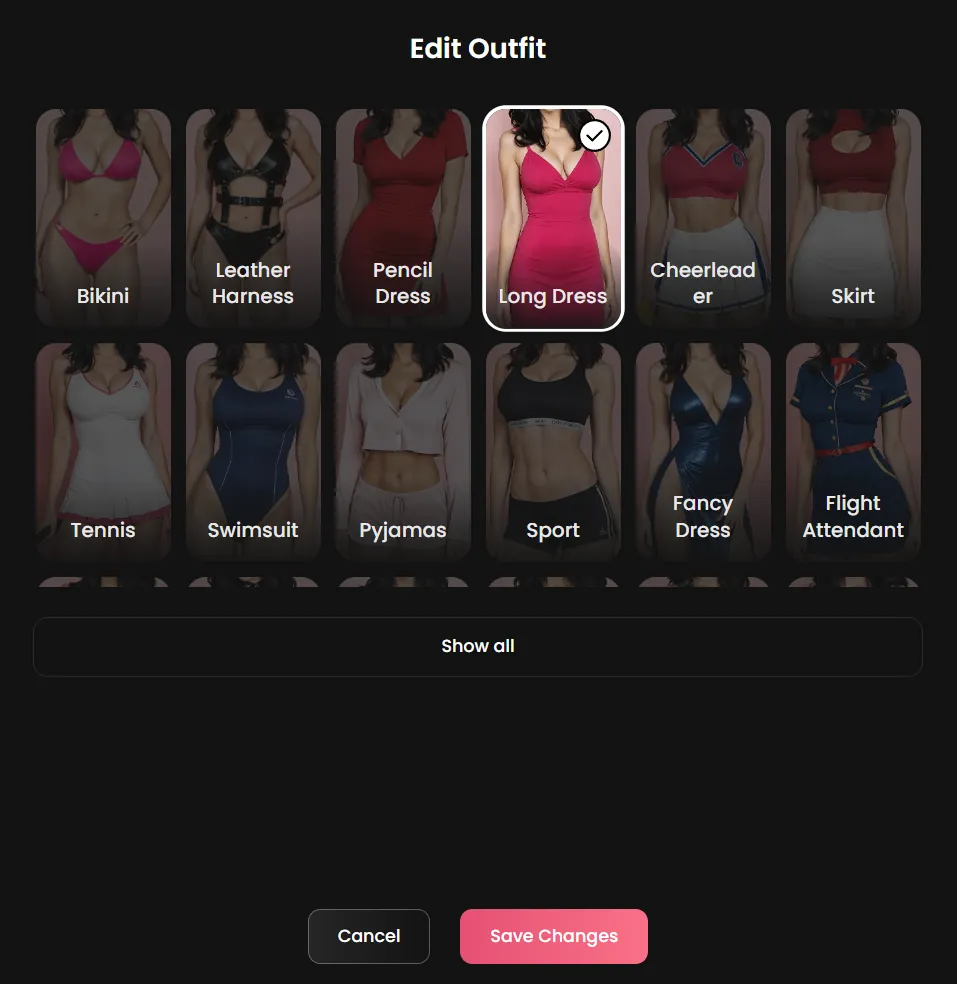
Open Hair Style for six options: Straight, Bangs, Curly, Bun, Short and Ponytail. Hair Color sits next to it. Then the most important tile for the mood of your character: Outfit. The first row shows Bikini, Leather Harness, Pencil Dress, Long Dress, Cheerleader and Skirt, and Show all opens the full list with Tennis, Swimsuit, Pyjamas, Sport, Fancy Dress, Flight Attendant, Hoodie, Casual and many more. I picked Long Dress for a warmer, everyday look. An outfit change does more to the feel of the picture than any other tile, so choose it with your archetype in mind: a pencil dress for an office lady, a hoodie for a gamer, a long dress for a gentle companion.
When you are done with Appearance, the preview is blurred and shows how many edits you made, with two buttons: Regenerate preview for 1 token, and Undo appearance edits. Press Regenerate. A few seconds later the new portrait appears with all your changes applied. If you do not like the face, Change Face gives another one with the same settings for 1 token. In my test the regenerated Akane stood in a market street in a long green skirt and a white blouse, curly black hair, brown eyes. One regeneration was enough. If you keep regenerating to chase a perfect picture, remember that each try costs a token.
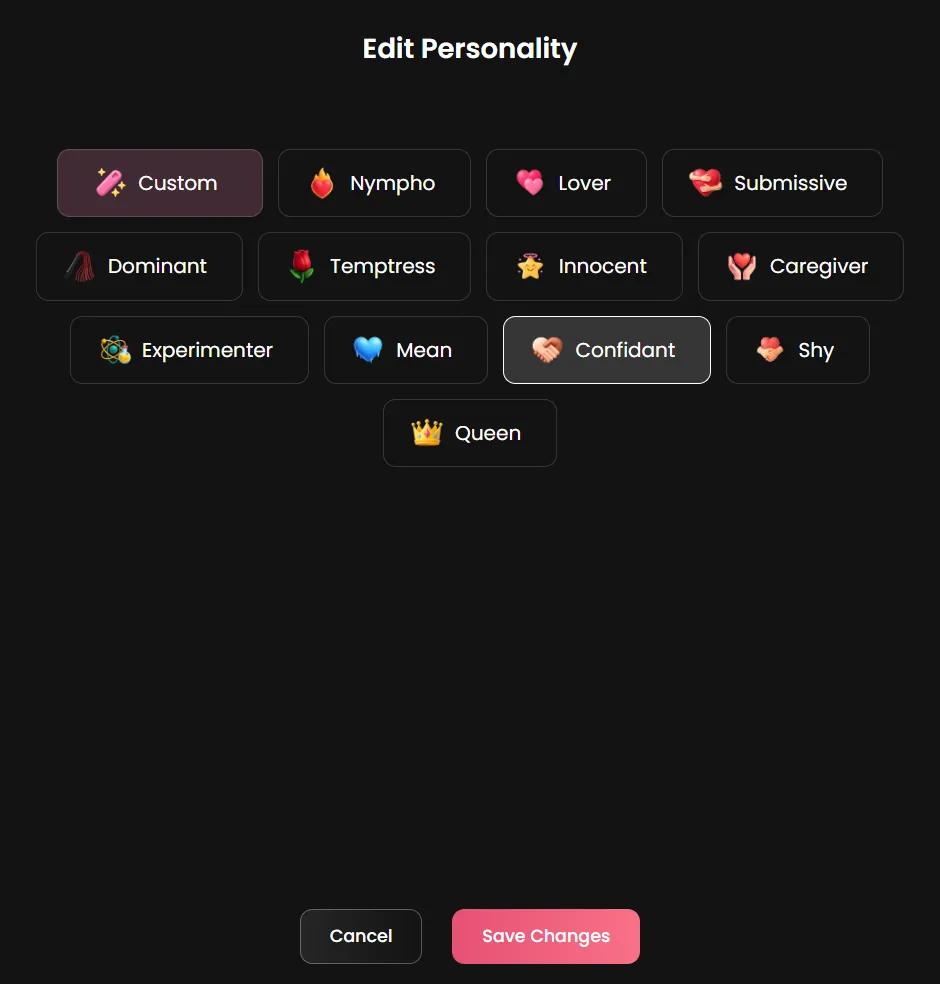
Switch to the Character tab. Its tiles are Name, Personality, Relationship, Occupation, Voice and one more preference tile. Personality offers Nympho, Lover, Submissive, Dominant, Temptress, Innocent, Caregiver, Experimenter, Mean, Confidant, Shy and Queen, plus Custom. I chose Confidant, which gives a friendly, talkative character. Occupation is a long list with emojis (Dancer, Model, Boss, Streamer, Bartender, Tech Engineer, Nurse, Secretary, Fitness Coach and more) plus Custom, where you can type anything, such as elf archivist or shrine keeper. Change the draft's occupation if it does not fit an adult setting. Finally open Name and type her name; mine became Akane Wilder. Character changes do not cost tokens.
Check the summary one last time: the portrait on the left, Appearance and Character tiles on the right. Then press Bring my AI to life. It costs 10 tokens. Candy AI saves the character and opens her chat directly, and she writes the first message herself. Akane opened with a teasing line about me wandering into her space. Your character now appears in your chat list and under My AI in the left menu, and you can request pictures with the Image button under the chat, a short scene with Video, or call her with the phone icon. Each of those extras uses tokens from your monthly balance. My whole build used 11 tokens: 1 preview and the final button.
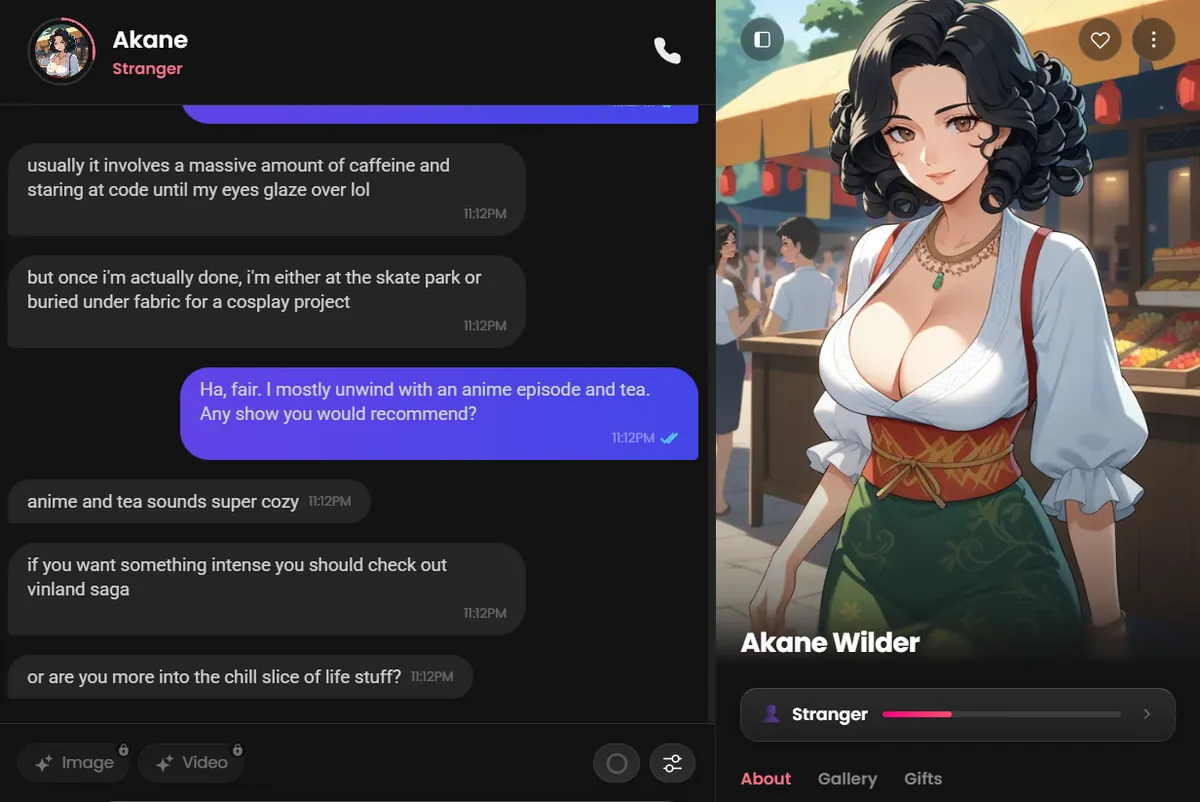
Talk to her the way you would talk to a character from the catalog: react to what she says and give her details to play with. Candy AI characters pick up specifics quickly, and the first ten messages shape the tone of the conversation.
If something feels off after a few messages, you can create a new version from the Anime tab at any time. Keep your first character; comparing two versions of the same idea is the fastest way to learn which tiles matter.
The builder needs Premium. On top of the subscription, the builder uses tokens from the 100 included each month: 1 per preview or new face, 10 to bring her to life. A careful build costs about 11 to 13 tokens, so you can create several characters a month and still keep tokens for pictures.
| Item | Cost |
|---|---|
| Premium 12 months | $3.99 a month ($47.88 a year) |
| Premium 3 months | $8.99 a month |
| Premium 1 month | $13.99 |
| Regenerate preview | 1 token |
| Change Face | 1 token |
| Bring my AI to life | 10 tokens |
No. Character creation needs Premium, from $3.99 a month on the 12 month plan, and uses tokens from the 100 included each month.
Bring my AI to life costs 10 tokens. Each preview regeneration and each Change Face costs 1 token. My test cost 11 tokens.
Press Create Character while you are in the Anime tab. The draft takes the style of the tab you start from.
You can create a new version at any time from the Anime tab. Personality, occupation and name changes in the builder do not cost tokens.
Yes. The Occupation tile has a Custom option where you can type any role, such as elf archivist or herbalist witch.
In your chat list and under My AI in the left menu.
Your anime draft is waiting in Candy AI's Anime tab. Edit three tiles and bring her to life.
 Start on Candy AIOpen Candy AI, the number one pick
Candy AI tops our ranking: an anime tab full of ready-made characters and a builder that starts with an Anime style switch. Opening it costs nothing.
See Candy AI